录音棚里的
歌词提词器
The lyric prompter
built for the studio
歌手在棚里录歌,最怕找不到词。
唱到哪儿,歌词就亮到哪儿。
No more hunting for the next line in the booth.
The lyric lights up exactly where you are.
这些麻烦,本来不该有Problems that shouldn't exist
先说录音棚里最常见的几个痛点:Start with the pains every session runs into:
五件事,做到底Five things, done properly
全屏大字歌词,逐字高亮Full-screen lyrics, word-by-word
跟着 DAW 的播放头走,当前这一句用高亮色显示,唱过的和还没唱的是暗色。酷狗 KRC 格式带逐字时间轴,能一个字一个字地亮。 Synced to your DAW's playhead. The current line is highlighted; past and upcoming lines stay dim. Kugou KRC timing highlights word by word.
- 高亮颜色四选一:黄 / 红 / 蓝 / 橙,全局同步Four highlight colors: amber / red / blue / orange
- 字号 24–200 可调,也能随窗口高度自适应Font size 24–200, or auto-fit to window height
- 可开镜像,贴在提词玻璃上给歌手看Optional mirror mode for beam-splitter glass
- 歌曲信息条:词曲作者 / 制作人做成字幕行一起滚Credits roll as subtitle lines too
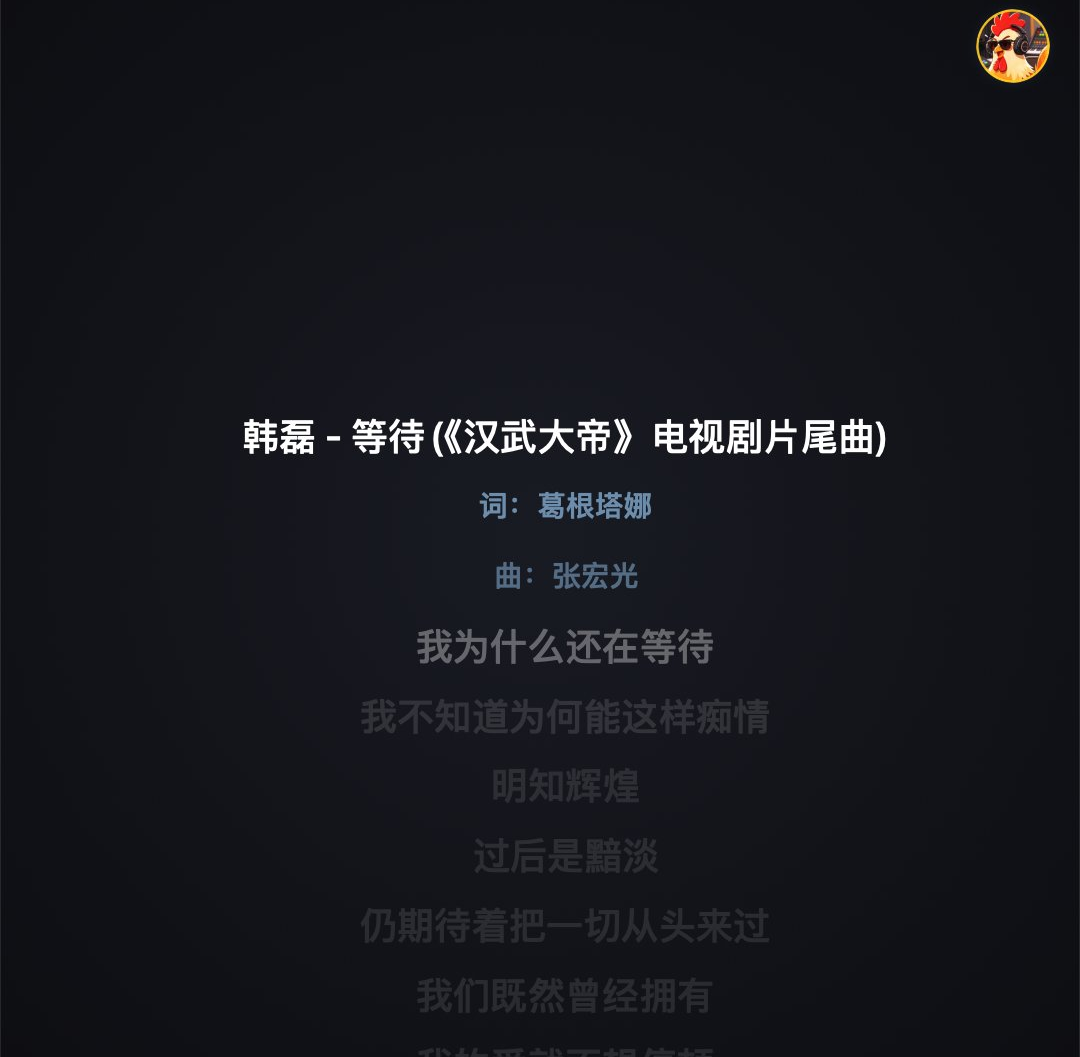
六个歌词源,自动按优先级搜Six lyric sources, tried in order
Nuendo / Cubase(VST3)把伴奏轨的轨道名自动报给提词器,它按「歌手 - 歌名」直接搜歌词。轨道名写法再乱也能认(各种分隔符、编号前缀、扩展名都会剥掉)。Logic(AU)和 Pro Tools(AAX)拿不到可靠的轨道名,在插件界面或 App 搜索框手动搜一次。 With Nuendo / Cubase (VST3) the prompter gets the backing track's name automatically and searches "artist - title" by itself. Messy track names are parsed anyway — separators, track numbers and file extensions are all stripped. Logic (AU) and Pro Tools (AAX) can't read a reliable track name, so you search once in the plug-in UI or the app's search box.
- DAW 的默认轨道名(音频 01 / Audio 01)会被跳过,不拿它去乱搜Default track names (Audio 01) are skipped
- 搜到的版本不对,可以手动「换一个歌词来源」,带时长差和「逐字」标记Swap sources manually, with duration diff and word-timing badges
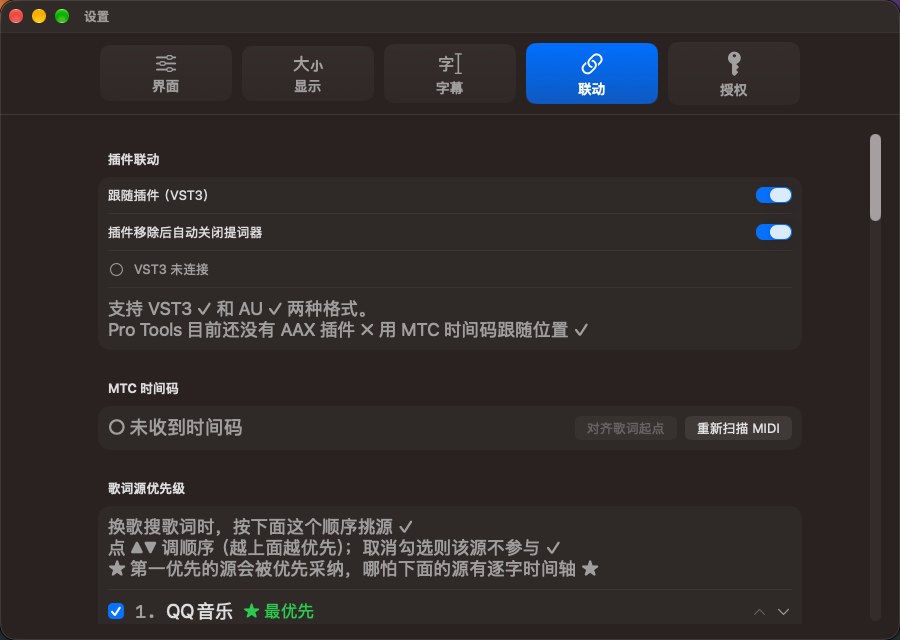
插件跟随,精度到采样级Plug-in sync, sample-accurate
插件插在 DAW 的伴奏轨上,把播放位置报给提词器 —— 位置数据只在本机回环,不经过网络。 The plug-in sits on your backing-track channel and reports the playhead to the prompter. Data stays on your machine's loopback.
- 跟随音频块:把音频块的头当 0:00,音频块拖到工程任何位置,歌词都跟着声音走Follow the audio clip: clip head is 0:00, so lyrics track the audio wherever you move it
- 插件是纯直通,不改一个采样的声音The plug-in is pure pass-through — zero audio change
- 插上插件自动拉起提词器,插件移除自动关闭Inserting it launches the prompter; removing it closes the prompter
- 没有插件也能用:MTC 时间码 或本机播放No plug-in needed either: MTC timecode or local playback
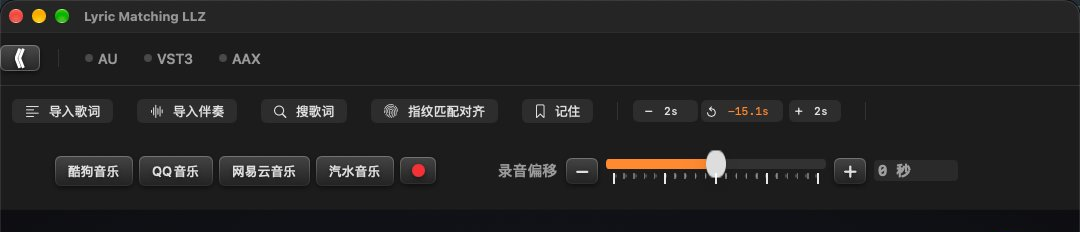
选好音乐 App,一个 ⏺ 键接管整套录音Pick a music app, one ⏺ button runs the take
第三行先用音乐键告诉提词器「录音时用哪个 App」(点一下变蓝框就算选中,它不播放也不暂停)。然后点一次 ⏺:音乐起播 → 等一个提前量 → DAW 启动录音准备并开始录 → 按需静音当前轨道,全部自动。 First pick your music app with the music keys on the third row (a blue frame means selected — it doesn't play or pause anything). Then press ⏺ once: music starts, the offset is waited out, the DAW arms and rolls into record, and the track can be muted — all automatic.
- 再点一下 ⏺(或在 DAW 里按空格)→ 全部停止:DAW 停 + 取消录音准备 + 解除静音 + 音乐 App 暂停 + 取消所有音乐键高亮Press ⏺ again (or hit Space in the DAW) → everything stops: DAW stops, track unarmed, mute released, music paused, keys cleared
- 长按 1 秒弹出菜单:静音当前轨道 / 不静音Hold for 1 s for a menu: mute the track, or don't
- 录音偏移中点 0 = 用各 App 默认值:酷狗 1.3 秒,QQ / 网易云 / 汽水 0 秒;范围 ±10 格,每格 0.2 秒Offset centred at 0 uses each app's default: Kugou 1.3 s, QQ / NetEase / Soda 0 s; ±10 steps of 0.2 s
- 配合音乐 App 全局快捷键:给每个 App 设一个播放 / 暂停快捷键Pairs with per-app global hotkeys for play / pause
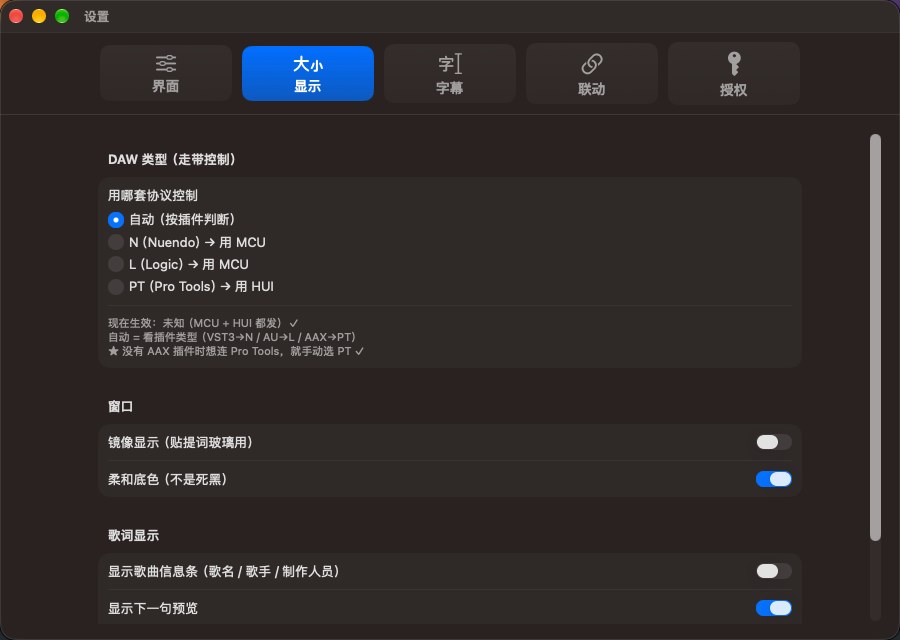
- 走带是双向的:装了 LLZ MIDI 桥之后,提词器和 DAW 互相能控(Nuendo / Logic / Studio Pro 走 MCU)Transport is two-way: with LLZ MIDI Bridge installed, prompter and DAW control each other (MCU for Nuendo / Logic / Studio Pro)
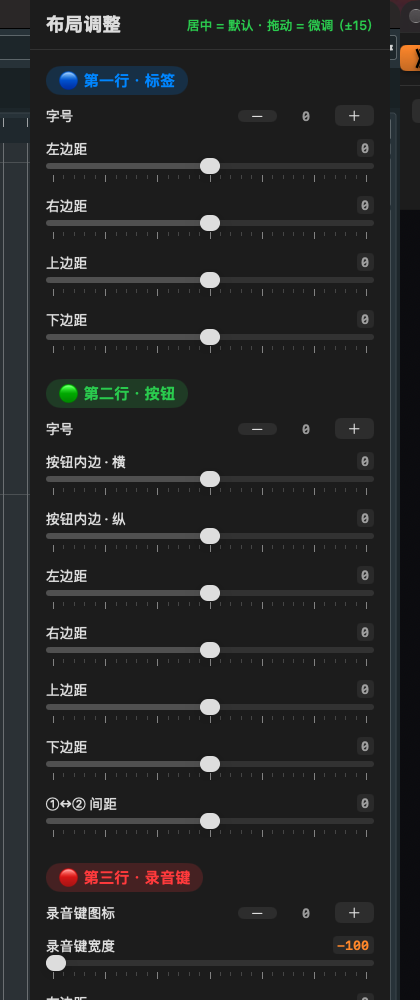
布局调整器:按你的录音位调Layout tuner, fitted to your room
主界面第一行最左边那个橙色 《 就是入口。点一下从左滑出面板,拖滑杆主界面立刻变,松手 0.4 秒后自动记住,不用点保存。 The orange 《 at the left of the top row opens it. Drag any slider and the main window changes live; it remembers 0.4 s after you let go — no save button.
- 按蓝 / 绿 / 红分组,一组管一行:字号、四边距、按钮内边、录音键大小…Grouped by row: font sizes, margins, button padding, record-key size…
- 双击滑杆立刻回正中,双击数值可直接打字输入Double-click a slider to recentre, a value to type it
- 画面不需要的元素可以在设置里整项隐藏,后面的元素自动补位Hide any element and the rest reflows automatically
支持哪些 DAW / 插件格式Supported DAWs & plug-in formats
安装包会把 App、LLZ MIDI 桥和插件一起装好。桥常驻后台,重启电脑后 DAW 也永远找得到 Lyric Matching LLZ 端口。 The installer sets up the app, LLZ MIDI Bridge and the plug-ins together. The bridge stays resident, so your DAW always finds the Lyric Matching LLZ port — even after a reboot.
| 格式Format | 装在哪Install path | 哪些 DAW 用Used by |
|---|---|---|
| VST3 | /Library/Audio/Plug-Ins/VST3/ | Nuendo · Cubase · Studio Pro · ReaperNuendo · Cubase · Studio Pro · Reaper |
| AU | /Library/Audio/Plug-Ins/Components/ | Logic Pro · GarageBand · MainStage |
| AAX 7.18 新增New in 7.18 | /Applications/Plug-Ins/ 首选路径(安装包自动装) /Library/Application Support/Avid/Audio/Plug-Ins/ 也可放这里(Pro Tools 也会扫描) | Pro Tools 已随 7.18 提供:在 Pro Tools 里把插件插到伴奏轨的插入端即可,位置跟随和录音控制都能用。 Ships with 7.18: insert it on the backing track in Pro Tools — position sync and recording control both work. |
| 跟随方式Sync method | 精度Accuracy | 要装什么What's needed | 能读轨道名Reads track name |
|---|---|---|---|
| 插件(VST3 / AU / AAX)Plug-in (VST3 / AU / AAX) | 采样级Sample-accurate | 安装包已带Included |
VST3 能(Nuendo / Cubase 自动搜歌词) AU、AAX 拿不到可靠轨道名 → 手动搜 VST3 yes (Nuendo / Cubase auto-search) AU and AAX can't read a reliable track name → search manually |
| MTC 时间码timecode 可选optional | 25 fps ≈ 40 ms | 什么都不用装Nothing | 不能No |
| 本机播放Local playback | 文件自身时间轴File timeline | 什么都不用装Nothing | 按歌名匹配歌词Matched by song name |
| 宿主Host | 推荐接法Recommended | 备注Notes |
|---|---|---|
| Nuendo · Cubase | VST3 + MCUVST3 + MCU | 插件报位置最准;走带用 MCU 控制:工作室设置 → 加一个 Mackie Control,端口选 Lyric Matching LLZPlug-in reports position; transport via MCU — add a Mackie Control in Studio Setup with the Lyric Matching LLZ port |
| Logic Pro · GarageBand | AU + MCUAU + MCU | AU 和 VST3 是同一份代码;在 Logic 里加一个 Mackie Control 控制表面,提词器上点 ⏺ 就能让 Logic 开始录AU shares the VST3 code; add a Mackie Control surface in Logic and ⏺ on the prompter starts recording in Logic |
| Studio Pro · Reaper | VST3 插件VST3 plug-in | 插件跟随位置Plug-in position sync |
| Pro Tools 7.18 新增New in 7.18 | AAX + HUIAAX + HUI | 装 AAX 插件;Setup → Peripherals → MIDI Controllers 加 HUI,Receive From / Send To 都选 LyricMatchingLLZ,# 通道 8。另需给提词器开 macOS 辅助功能权限(用来读写轨道 R、静音)。PT 不支持 MCUInstall the AAX plug-in; add a HUI in Setup → Peripherals → MIDI Controllers with both ports set to LyricMatchingLLZ, # channels 8. Also grant the prompter macOS Accessibility (it reads and clicks track R and mute). Pro Tools doesn't support MCU |
六个歌词源,按优先级自动尝试Six sources, tried automatically
顺序可以在设置里调,点 ▲▼ 上下移动;取消勾选 = 不用这个源。也可以直接拖歌词文件进来,或点「导入伴奏」自动匹配同名歌词。 Reorder them in Settings with ▲▼, or untick a source to drop it. You can also drag a lyric file straight in, or import a backing track and let it match the lyrics by name.
逐字时间轴Word timing 逐字Word timing
KRC 逐字时间轴,一个字一个字地亮;词曲作者 / 制作人是带时间轴的字幕行,观感最好。KRC word-level timing; credits roll as timed subtitle lines. The best-looking option.
元信息最全Richest metadata
歌名 / 歌手 / 专辑 + 完整制作人员名单。Title, artist, album and the full credits list.
版本匹配最准Best version match
版本匹配历史最准,时长对得最齐。Historically the most accurate version matching by duration.
备用源Backup source
前面几个都没搜到时的备选。A backup source when the others come up empty.
搜索直出歌词Direct lyric URL
搜索自带歌词地址,LRC 含作词 / 作曲。Search returns a lyric URL directly; LRC includes writers.
开源歌词库Open lyric library 兜底Fallback
开源歌词库,免 key,最后兜底。Open lyric library, no API key, used as the last resort.
点一下 ⏺,依次发生什么Press ⏺ and here's what happens
给选中的音乐 App 发快捷键Hotkey to the chosen music app
用第三行的音乐键先选好 App,提词器就给它发一个播放快捷键,音乐开始放。You pick the app with the music keys first; the prompter sends it a play hotkey and the music starts.
等「默认值 + 滑杆偏移」秒Waits default + slider offset
酷狗默认 1.3 秒,QQ / 网易云 / 汽水 0 秒;滑杆在此基础上加减,中点 0 就是不改。1.3 s for Kugou, 0 s for QQ / NetEase / Soda; the slider adds to that, centred at 0 meaning no change.
DAW 启动录音准备DAW arms the track
提词器通过 MIDI 桥让 DAW 给当前轨道启动录音准备,轨道上的 R 灯亮起。Through the MIDI bridge the prompter arms the current track; its R lamp lights up.
DAW 开始录音Recording starts
DAW 走带进入录音,提词器的歌词跟着位置走。The DAW rolls into record and the lyrics follow the playhead.
按需静音当前轨道Optional track mute
只有在长按菜单里选了「静音当前轨道」才做 —— 那条轨道的输出会串进监听,静音掉更干净。Only if you chose "mute current track" in the long-press menu — it keeps that track's output out of the monitor path.
再点一下 ⏺,全部停止Press ⏺ again — all stops
DAW 停 + 取消录音准备 + 解除静音 + 音乐 App 暂停 + 取消所有音乐键高亮。在 DAW 里按空格也是同样效果。DAW stops, track unarmed, mute released, music paused, keys cleared. Pressing Space in the DAW does the same.
三步装好Three steps
打开安装包Open the installer
双击 Lyric Matching LLZ 7.18.dmg,按提示走完。App、LLZ MIDI 桥、VST3 / AU / AAX 插件会一起装好。Double-click Lyric Matching LLZ 7.18.dmg and follow it through. The app, LLZ MIDI Bridge, and the VST3 / AU / AAX plug-ins all install together.
输入管理员密码Enter your admin password
装到 /Applications 和 /Library 需要权限。如果提示「无法验证开发者」,右键点安装包 → 选「打开」→ 再点一次「打开」。Writing to /Applications and /Library needs it. If macOS warns about an unidentified developer, right-click the installer → Open → Open again.
重启 DAW,插上插件Restart your DAW, insert the plug-in
插件缓存很顽固,不重启看不到新界面。在伴奏轨上插入 Lyric Matching LLZ,再按需在 DAW 里加一个 Mackie Control 控制表面。Plug-in caches are stubborn — restart or you'll see the old interface. Insert Lyric Matching LLZ on the backing track, then add a Mackie Control surface if you want transport control.
三个部件Three components
提词器 App(/Applications)· LLZ MIDI 桥(常驻后台,重启电脑端口也在)· VST3 / AU / AAX 插件(AAX 默认装到 /Applications/Plug-Ins/,标准 Pro Tools 需手动复制到 Avid 目录)。The prompter app, LLZ MIDI Bridge (resident — the port survives reboots), and the VST3 / AU / AAX plug-ins (AAX goes to /Applications/Plug-Ins/; standard Pro Tools needs a manual copy into the Avid folder).
只需一个Just one
系统设置 → 隐私与安全性 → 辅助功能,勾上「Lyric Matching LLZ」。用于把歌词粘贴到音乐 App 的搜索框;用 Pro Tools 时还用于读/点轨道 R、静音、判断当前轨道。不再需要「录屏与系统录音」。System Settings → Privacy & Security → Accessibility → tick "Lyric Matching LLZ". It's how lyrics get pasted into the music app's search box; with Pro Tools it also reads and clicks track R, mute, and the current track. Screen recording is no longer needed.
8888。点上面的按钮直接跳转;网盘打不开也可以扫码加微信。
Download: the installer is about 47 MB (app + MIDI bridge + VST3 / AU / AAX), hosted on Baidu Netdisk with passcode 8888. The button above opens it directly; if Netdisk doesn't work, scan the WeChat code instead.
先试用 7 天,满意了再买断Trial for 7 days, then buy it once
试用期从第一次打开算起,到期会有全屏遮罩提示。授权拿到手之后,这台机器上的所有新版本都不用再付钱。 The trial counts from your first launch; when it ends you'll see a full-screen notice. Once licensed, every future version on that Mac is free.
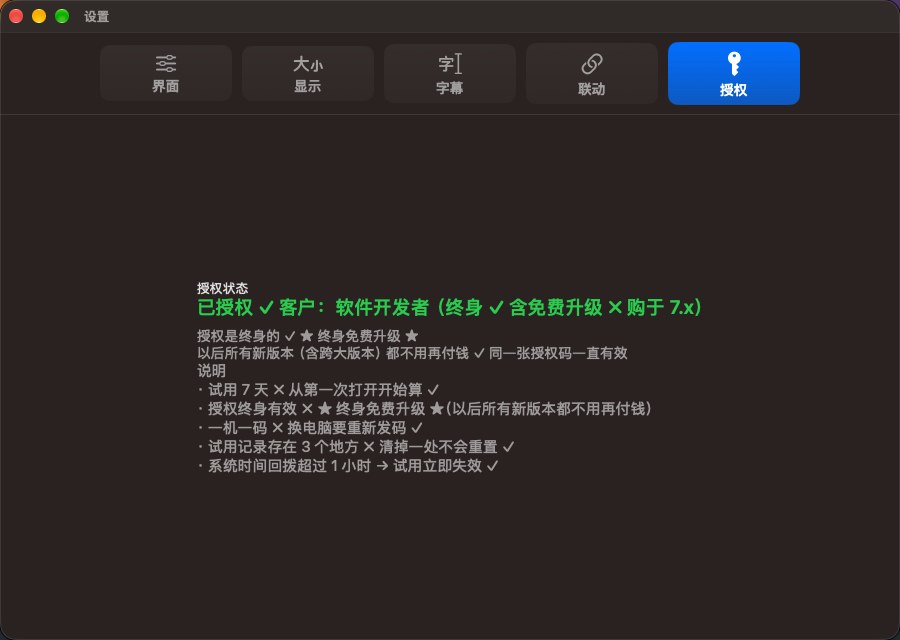
四步拿到授权Four steps to activate
- 装好打开,先试 7 天Install, open, trial for 7 days
- 设置 → 授权 → 复制本机机器码Settings → Licence → copy the machine code
- 把机器码发给作者,付款后收到授权码Send the code, pay, receive your licence code
- 粘回「授权」页 → 点激活,机器码和输入框会自动隐藏Paste it back on the Licence tab → activate; the fields then hide themselves

扫码加微信购买Buy via WeChat
加微信时备注「姓名 - 地区」,我通过后马上发你授权码。 Add me on WeChat and note 「name - city」; I'll send your licence code right away.
- 付款后立即发授权码,当天就能用Code arrives right after payment — same day
- 拉你进用户群,和同行交流使用心得You're added to the user group to swap workflow tips
- 有问题直接说,你的建议会进下一版Tell us what to fix — your feedback shapes the next release
LLZ Music StudioLLZ Music Studio
Lyric Matching LLZ 由 周琳琳(Zhou Linlin) 开发,在自己的录音棚根据实际使用体验及便捷性一步步测试研发,所有功能都为音乐人真实考虑。更多实用体验欢迎加微信进群交流。 Lyric Matching LLZ is built by Zhou Linlin — developed step by step in his own studio around real workflow and convenience, with every feature designed for musicians. For more hands-on tips, add our WeChat and join the group.

UI walkthrough · every feature · DAW two-way setup · troubleshooting